Use ready-made templates and save your own workflows
Run ready-made templates such as Weekly report from Excel or Monthly payroll by filling in a few fields, and save work that went well as a reusable workflow.
2 min read
A workflow is a repeated task that XomiW runs in one tap: you fill in a few fields (the input file, the reporting period…), XomiW does the rest and hands back the result file. XomiW comes with a set of templates, and you can save workflows of your own.
Browse the templates
- On the website: the Template library shows each template, including what you give and what you get. Click "Use this template" to open it in XomiW.
- Inside XomiW: web sidebar → "Workflows"; app: Account → "Workflows". The "XomiW templates" tab has templates such as "Weekly report from Excel", "Monthly payroll", "Official letter from bullet points", "Meeting minutes" and "Invoice PDFs → Excel". Filter by group: Documents, Reports, Finance, HR, Marketing, Research.
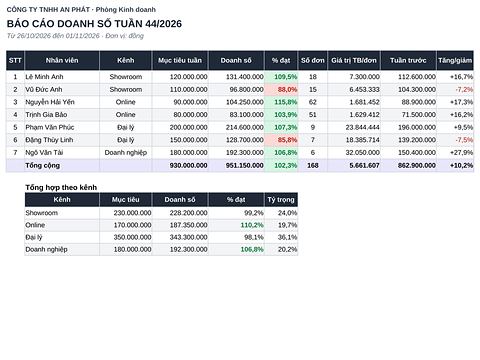 Weekly report from ExcelTake this week's numbers, compare with last week, add commentary, charts and a summary slide.Use this template →
Run a workflow
- Open the workflow and look at "You need", "Output" and "Estimate per run" (roughly how many credits).
- Fill in the fields. Fields marked "required" must be filled. For file fields, upload the file right there.
- If you like, choose "Save results to project".
- Click "Run now". The result opens as a new chat.
The "Sends anything out" line always says "No, unless you approve": a workflow never sends anything out on its own.
Save work as a workflow
When XomiW has just finished something you want to repeat, click "Save as workflow" under the answer (or type "save as a workflow"). XomiW prepares a workflow draft: a name, a category and the fields to fill in on each run.
- Check the "Workflow name", "Short description" and "Category".
- Adjust the "Fields to fill in on each run" (label, default value, required or not).
- Click "Save workflow", or "Discard draft" if you don't need it.
Saved workflows are in the "Mine" tab (or "Team" in a company workspace). In the app, workflow drafts are reviewed and saved on the web.
This article is also in Vietnamese
Still need help?
Email hotro@xomiw.com; we answer during working hours.
Related help articles
- Schedule workflows and tasks to run automaticallyRun a workflow daily, weekly or monthly on Vietnam time. How to set a schedule, pause it, run it now, and why a schedule can pause itself.
- Skills: teach XomiW the way you workSkills store your templates, rules and writing style so XomiW applies them by itself. Describe one, save it from chat or upload it; test it and manage versions.
Give XomiW the job, get the file
Reports, official letters, spreadsheets, reminders: write one sentence; XomiW does it and asks before sending or deleting anything.